
Welcome to your studio’s back-office. It works on your phone, your iPad, and a computer — everything here can be done one-handed on a phone between clients. You sign in at admin.kennedysmpstudio.co.uk.
1. Signing in
- Open admin.kennedysmpstudio.co.uk.
- Type your email and password, then tap Sign in.
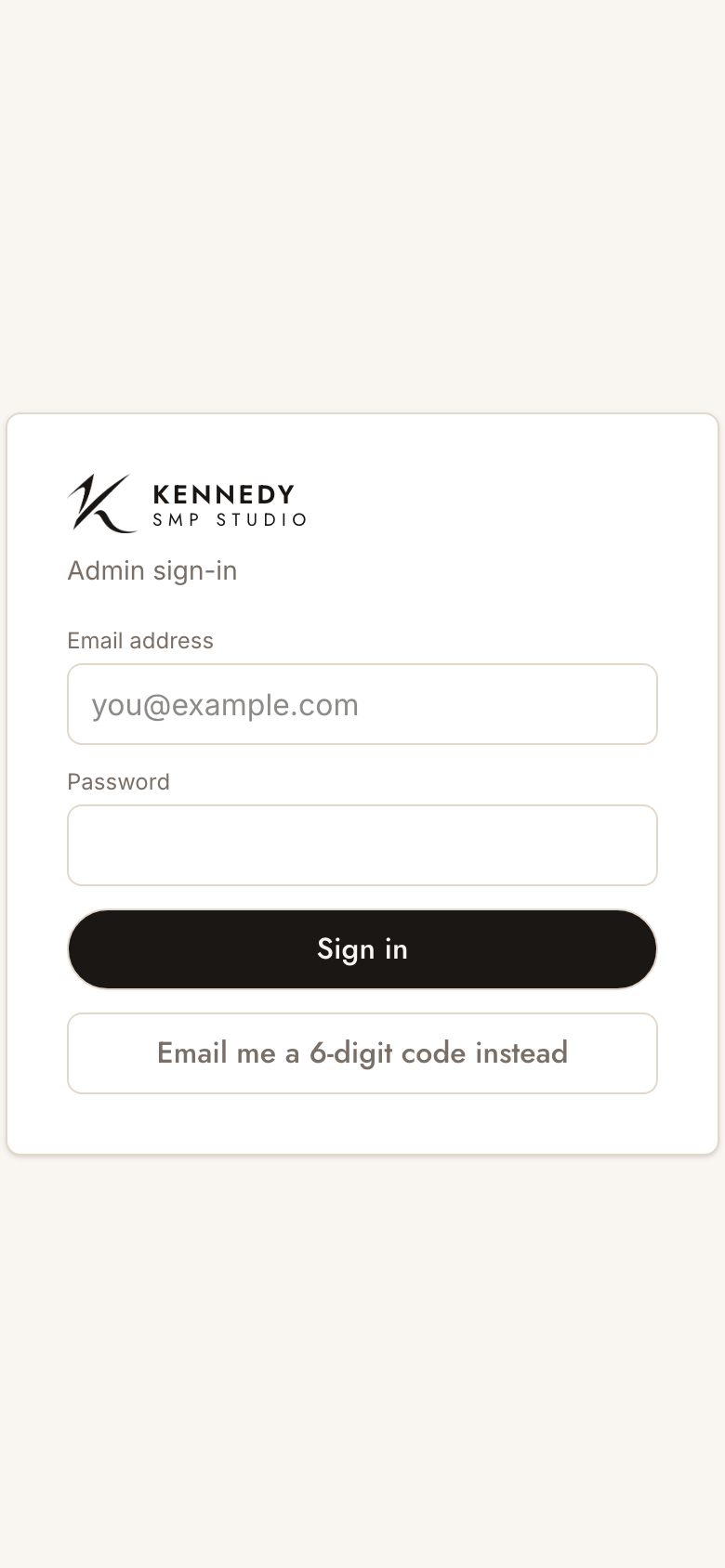
Forgotten your password, or on a new device? Tap “Email me a 6-digit code instead.” We’ll email you a code (and a one-tap link). Either tap the link, or type the 6-digit code and tap Verify. The code lasts 15 minutes; you can resend after 30 seconds.
Tip: add the site to your phone/iPad home screen so it opens like an app. To sign out, use Sign out at the bottom of the menu.
2. The home screen (Dashboard)
After signing in you land on the Dashboard — your studio at a glance:
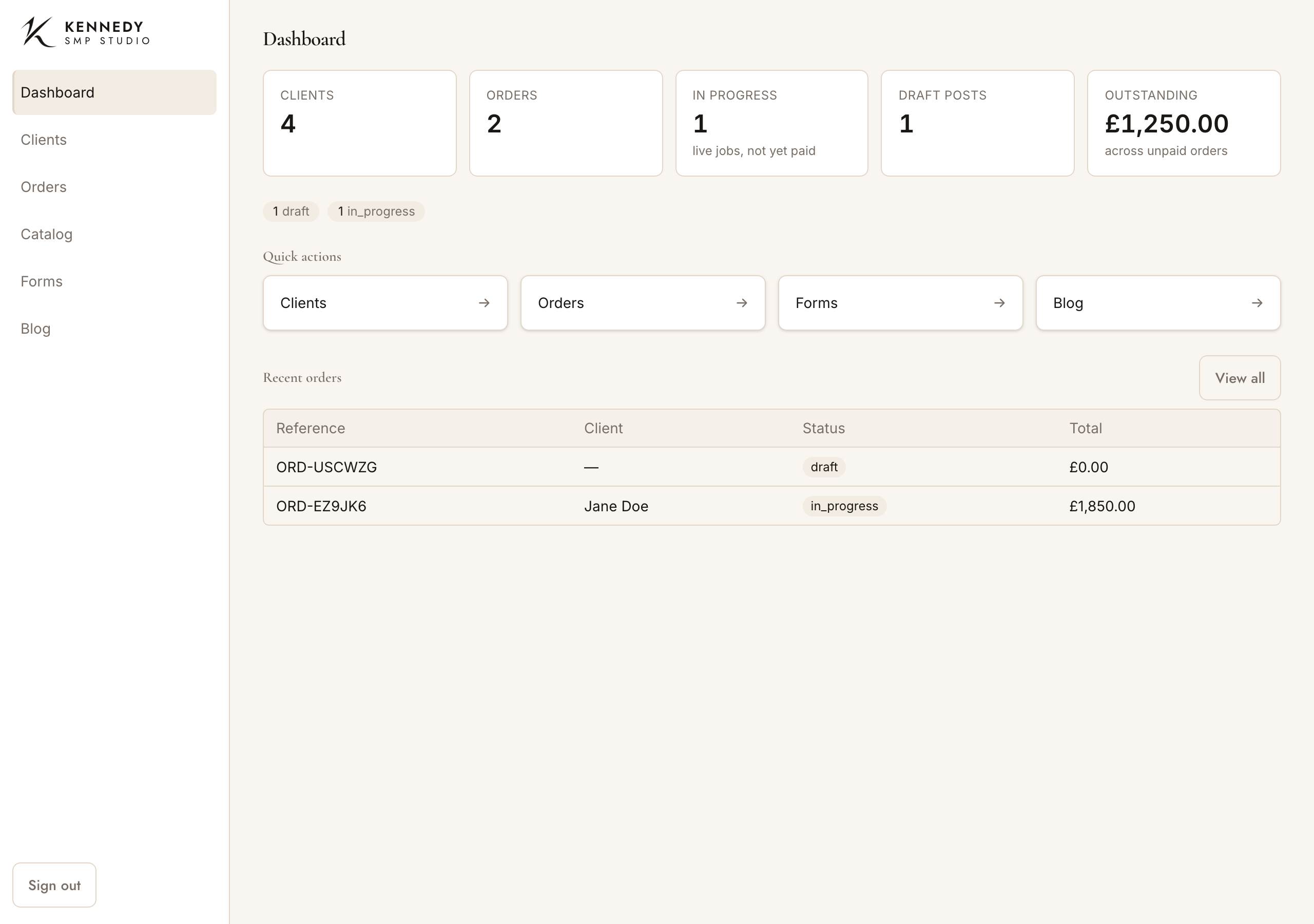
- Clients / Orders — how many you have.
- In progress — live jobs that aren’t finished and paid yet.
- Outstanding — the total money still owed to you across unpaid orders.
- Draft posts — blog posts you’ve started but not published.
- Quick actions + Recent orders — jump straight into anything.
Getting around: on a computer or iPad the menu is down the left. On a phone, tap the menu button (☰) in the top corner, then pick a section. Guides (this section) is always in the menu if you need a reminder.
3. Your typical day
A normal client journey, start to finish:
- A new client books in → add them under Clients (or skip this and take details later).
- They arrive → open their record and tap New order to start a job (Orders).
- Agree the work → add the services from your price list and any one-off lines. The total adds up for you.
- Take a deposit → log the payment; the screen shows what’s paid and what’s left.
- Send them their link (optional) → tap Send / re-send portal link so they can accept the quote and complete their consent from home (Client portal).
- Plan the sessions → for a multi-visit job, add a sitting for each session.
- Before you treat → hand them the iPad to fill and sign their consent on the signing screen.
- During/after → add before and after photos to that sitting.
- When it’s done → move the order to completed/paid, and tap PDF to give them their invoice, consent or treatment plan.
None of it has to be done in one go — you can come back to an order any time and pick up where you left off.
4. Good to know
- Nothing is ever really deleted by accident. Clients and orders you remove are archived and can be restored. Photos ask you to confirm before deleting.
- It saves as you go. Most changes save the moment you make them (you’ll see a small “Saved”).
- On patchy signal, if a screen looks empty or shows an error, tap Try again or refresh — your data is safe on the server.
- Money is logged, not charged. The admin records payments you’ve taken; it doesn’t take card payments itself.