
This is the clean, full-screen surface you hand a client on your iPad. It does two jobs: capture a quick signature (a disclaimer, quote acceptance or completion), or have the client fill in a form and sign it (their consent / medical history). Either way the studio menus are hidden so the client can’t wander into the rest of your admin, and it keeps a proper legal record — the exact terms they agreed to, plus the date.
Capture a quick signature
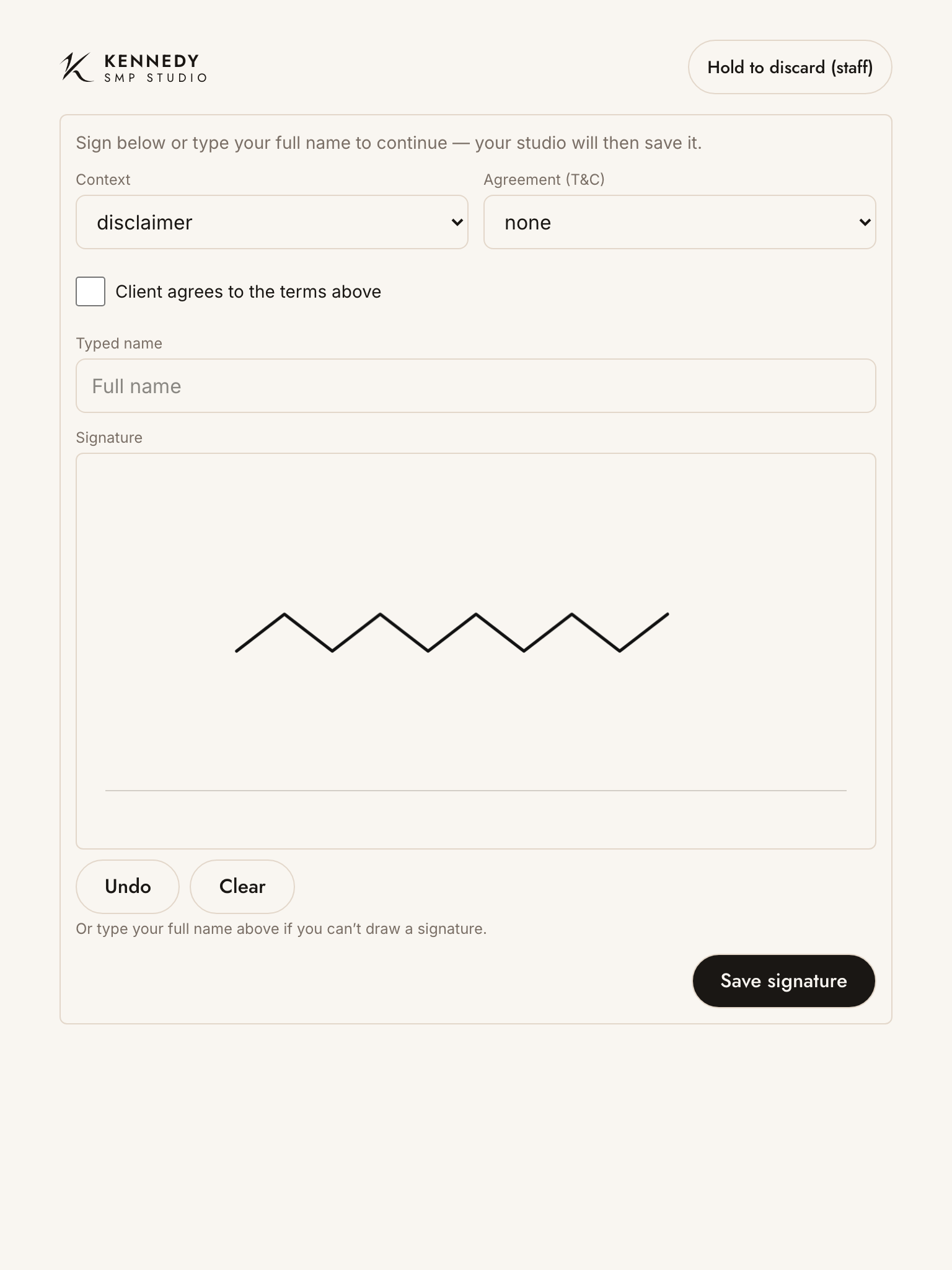
On an order, scroll to Forms & signatures and tap Capture signature. The screen turns into the full-screen signing surface.
What the client does
- (You set this first) Choose the Context — disclaimer, quote acceptance, or completion — and, if you want them to agree to terms, pick an Agreement (T&C); its text appears for them to read.
- If a T&C is shown, the client ticks “Client agrees to the terms above.”
- The client signs with a finger or stylus in the box. They can Undo the last stroke or Clear and start again. If they can’t draw a signature, they can simply type their full name instead.
- Tap Save signature.
Save only becomes available once there’s a signature (or a typed name) — and the agreement is ticked, if you attached one. A little hint tells the client what’s still needed, so there are no dead taps.
Fill a form with a client
When you tap Fill … on a form — the Consultation on an order, or Consent & Medical History / Treatment Record on a sitting — the same full-screen surface opens, this time with the form’s questions first:
- The client answers their questions (their fields only — your technician fields are greyed out). Required ones are marked.
- They tap Continue to sign.
- If the form needs terms agreeing, they tick “Client agrees to the terms above.”
- They sign, or type their full name, and tap Submit & sign.
The form is saved against the order (or that sitting) as client-submitted, ready for you to review.
Review and co-sign (technician)
For a form the client filled, tap Review on it (under the order’s Consultation, or the sitting’s Submitted forms). The client’s answers show read-only; you complete any technician fields and notes, then add your own Save & sign under Technician signature to finalise it. This is the same whether the client filled it on the iPad here or from their own portal.
Leaving the signing screen
To return to the admin, press and hold the “Hold to exit (staff)” button for 3 seconds (top corner). A single tap won’t exit — this stops a curious client dropping out of signing mode by accident. If a signature has been drawn but not saved, the button reads “Hold to discard (staff)” to warn you it’ll be lost.
After saving
The signature is stored against the order with the date, the exact terms text and version they agreed to, and device details — so you have a dependable record. It also shows as a small thumbnail in Forms & signatures on the order. If you attached a T&C, the client’s acceptance also appears on the invoice/quote PDF.
Tip: set the Context and Agreement before you hand the iPad over — then the client only has to read, tick, sign and tap Save.
You manage the wording of your agreements under Forms & consent.