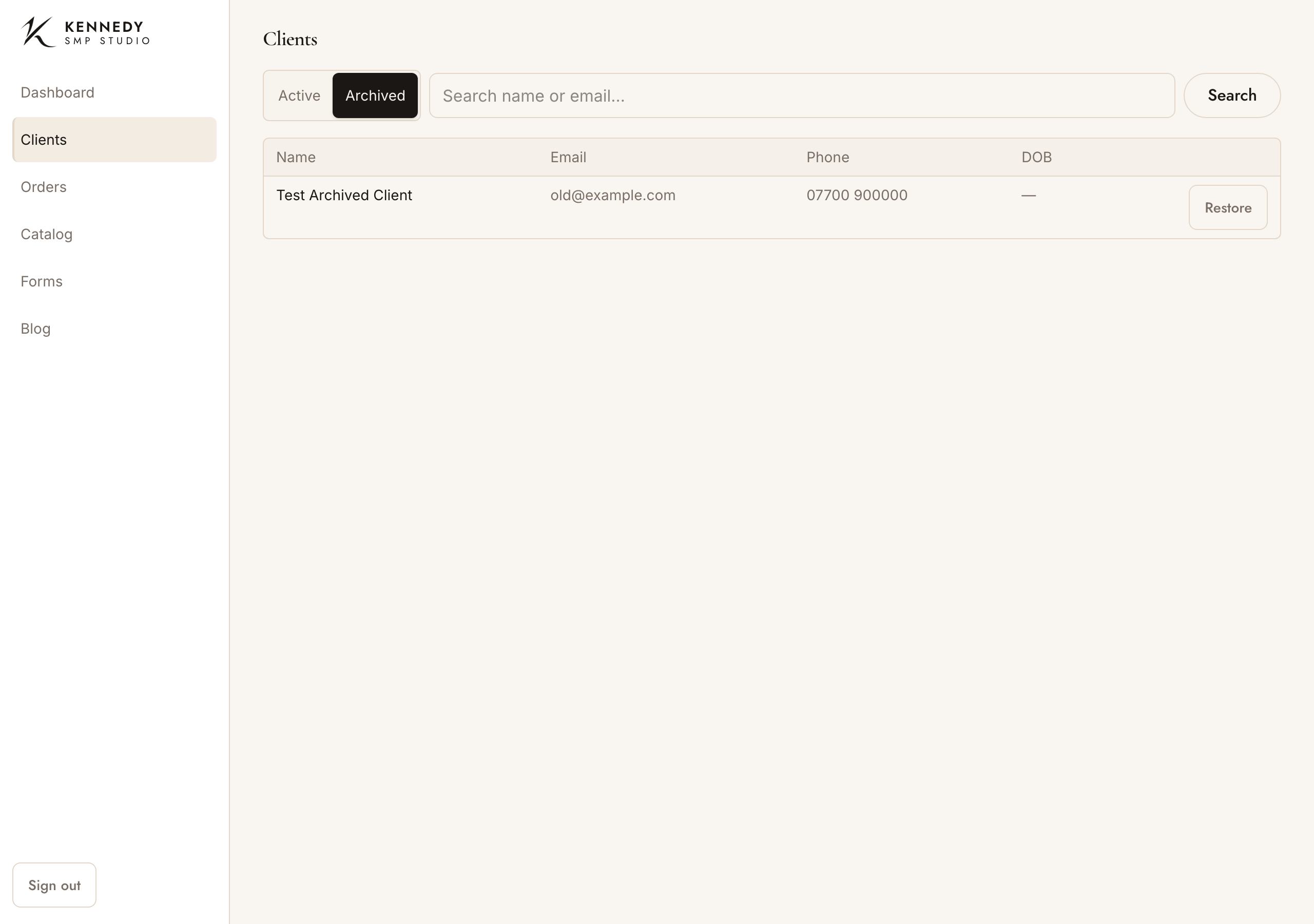
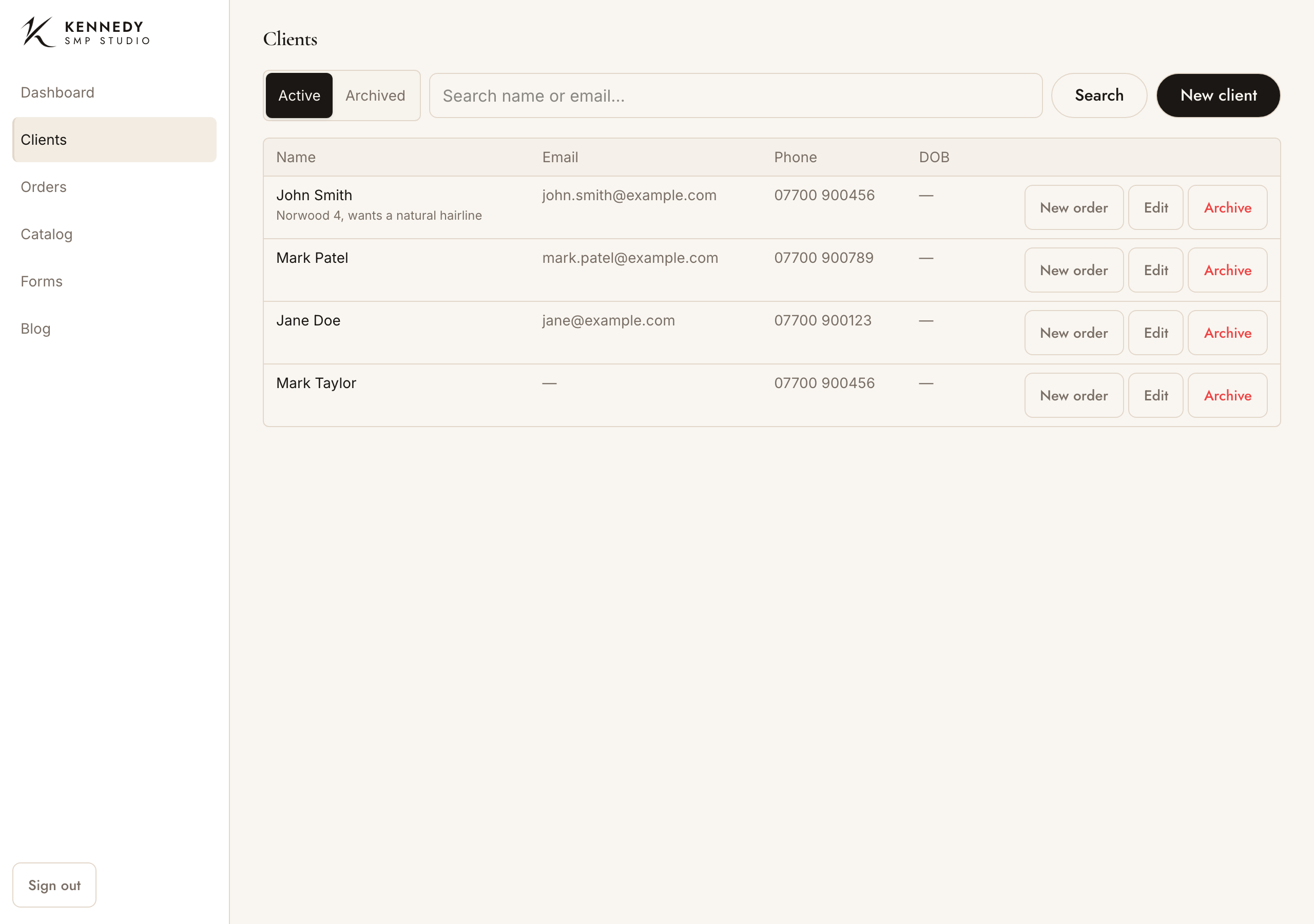
Your client records. Tap Clients in the menu.
Add a client
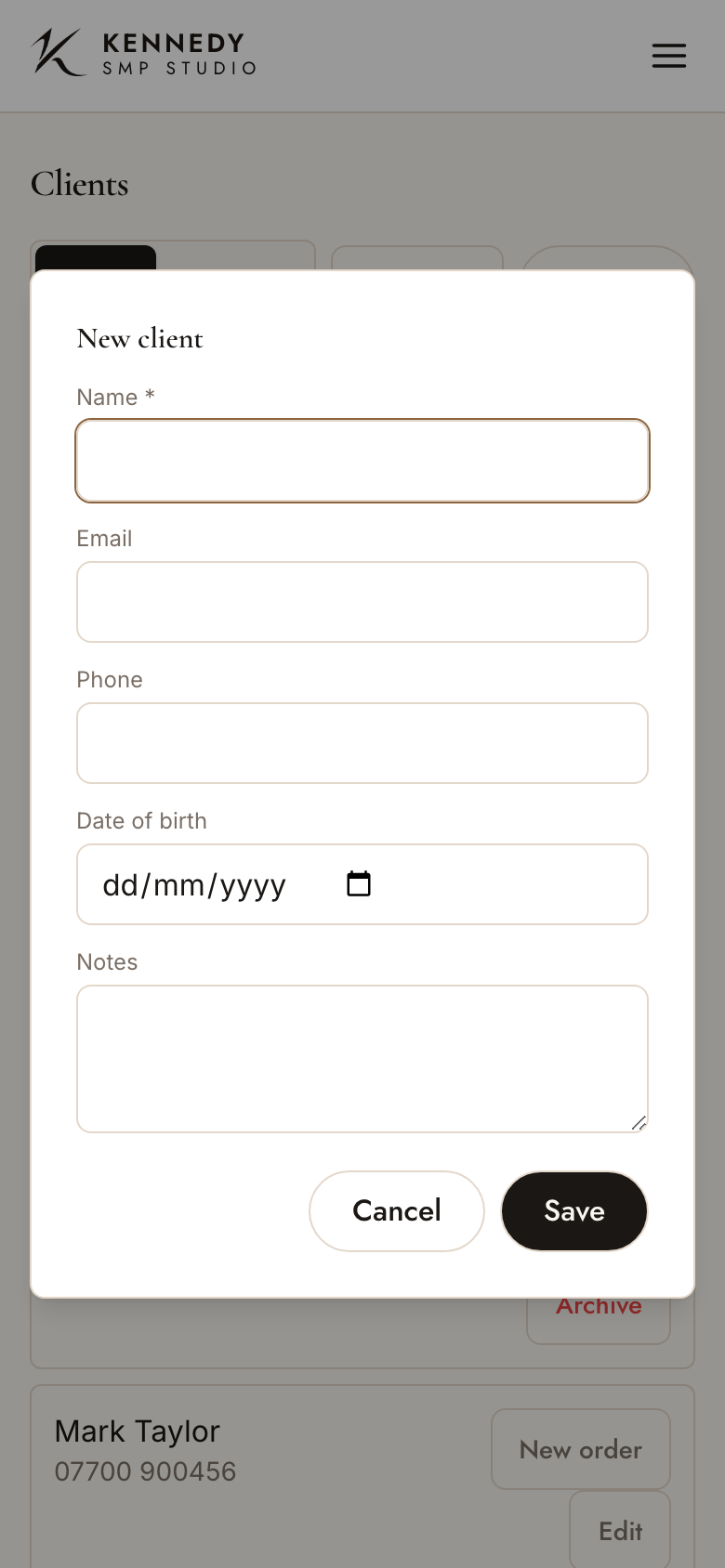
- Tap New client (top right).
- Fill in the Name (the only required field) and, if you have them, Email, Phone, Date of birth, Notes.
- Tap Save.
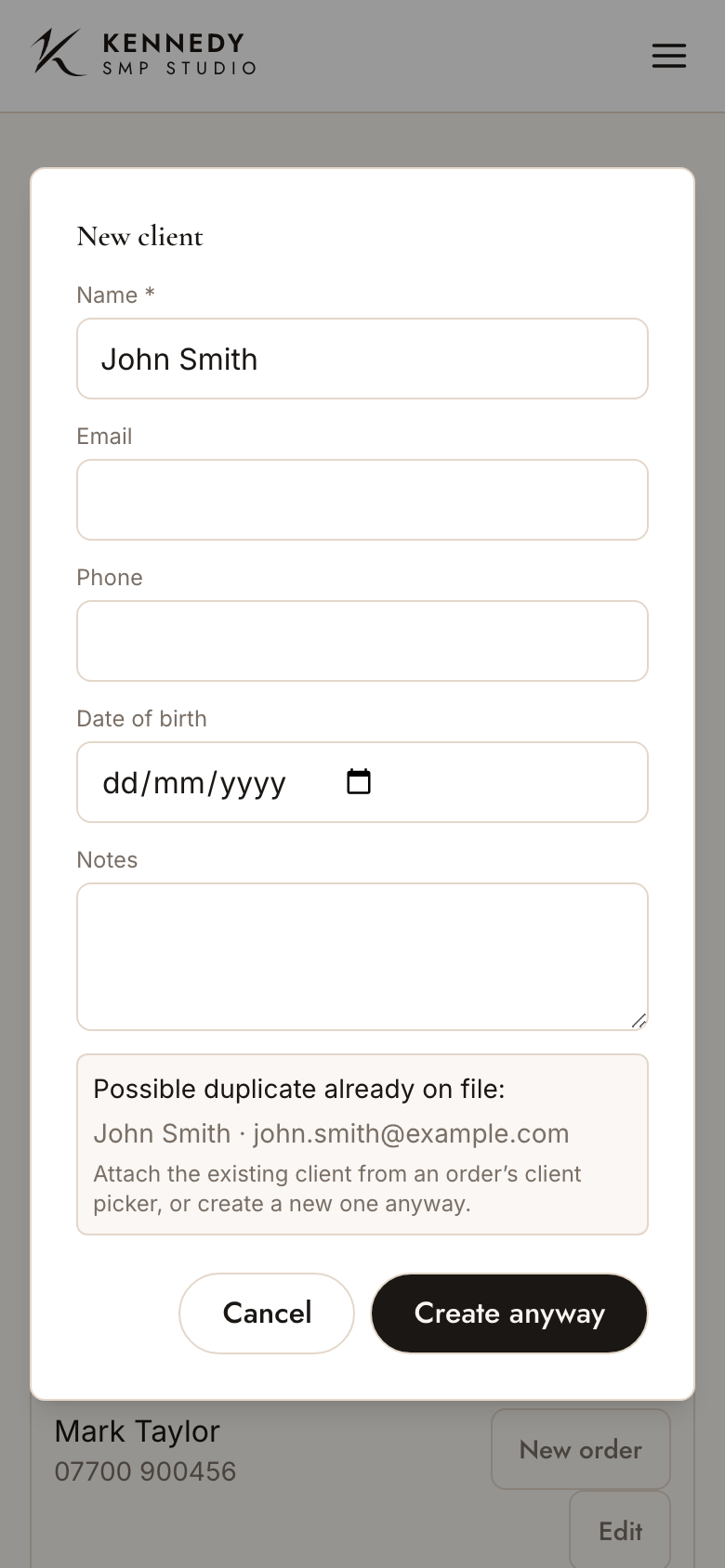
If the person might already be in the system, when you tap Save you’ll see “Possible duplicate already on file” with the matching record. Either use the existing client, or tap Create anyway if it really is a different person. This stops one client’s history getting split across two records.
Find a client
Type a name or email into Search — the list filters as you type.
Edit a client
- On a computer/iPad: tap the client’s row.
- On a phone: tap Edit on their card.
Change anything and tap Save.
Start a job for a client
Tap New order on the client (row or card). This opens a fresh order already linked to them — see the Orders guide.
Tip: you can also call or email a client straight from the list by tapping their phone number or email address.
Archive & restore
You don’t delete clients — you archive them (e.g. someone who’ll never return), and you can bring them back any time.
- Archive: tap Archive on the client and confirm.
- See archived clients: switch the Active / Archived toggle at the top to Archived.
- Restore: with Archived showing, tap Restore on the client.