
An order is one job: the quote, the money, the photos and the paperwork for a client. Tap Orders in the menu to see them all — filter by status, search by reference or client, and toggle Active / Archived.
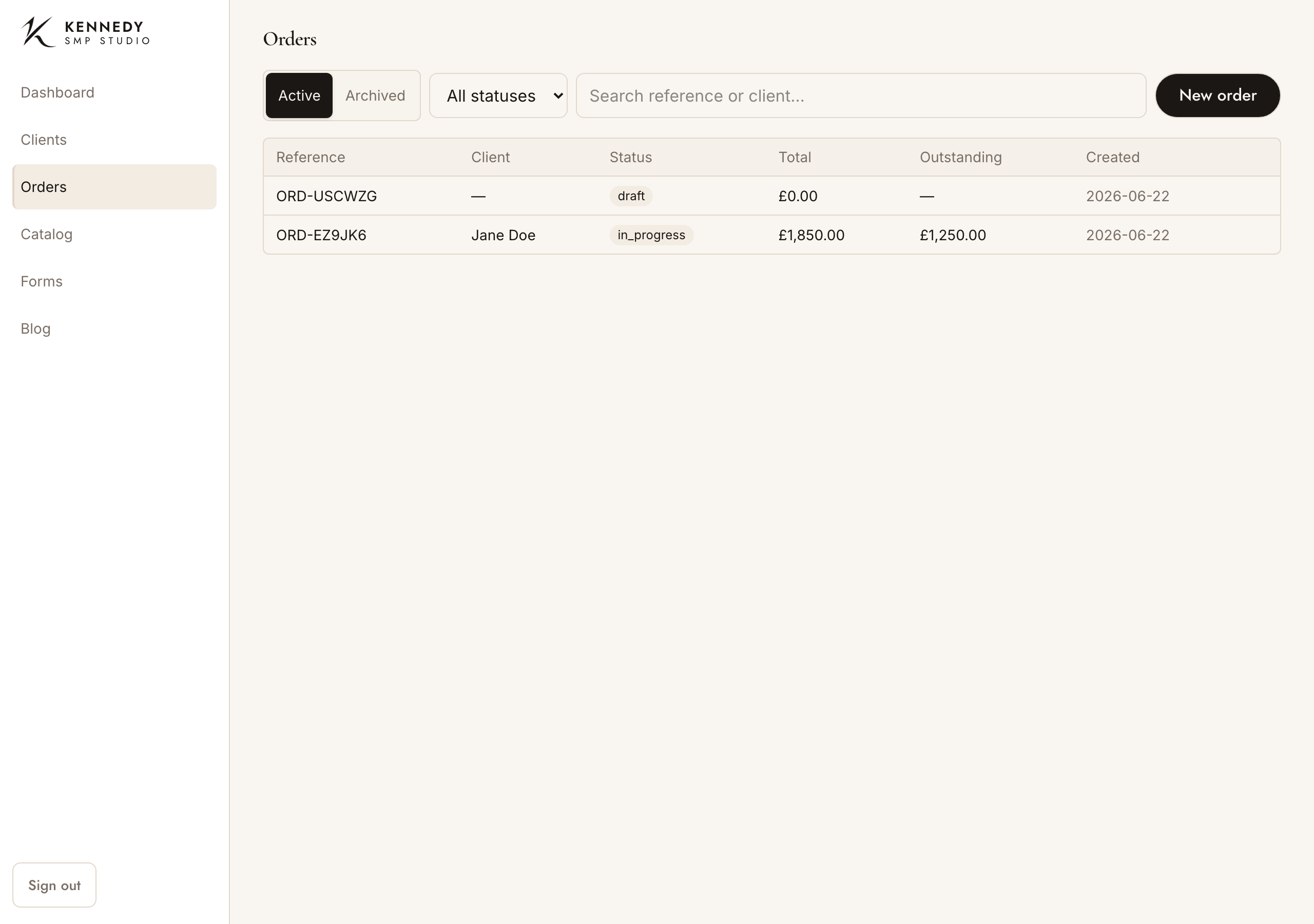
Each order has a reference like ORD-EZ9JK6. Tap one to open it.
Start a new order
For a booked client: go to Clients, find them, tap New order — the order opens already linked to them.
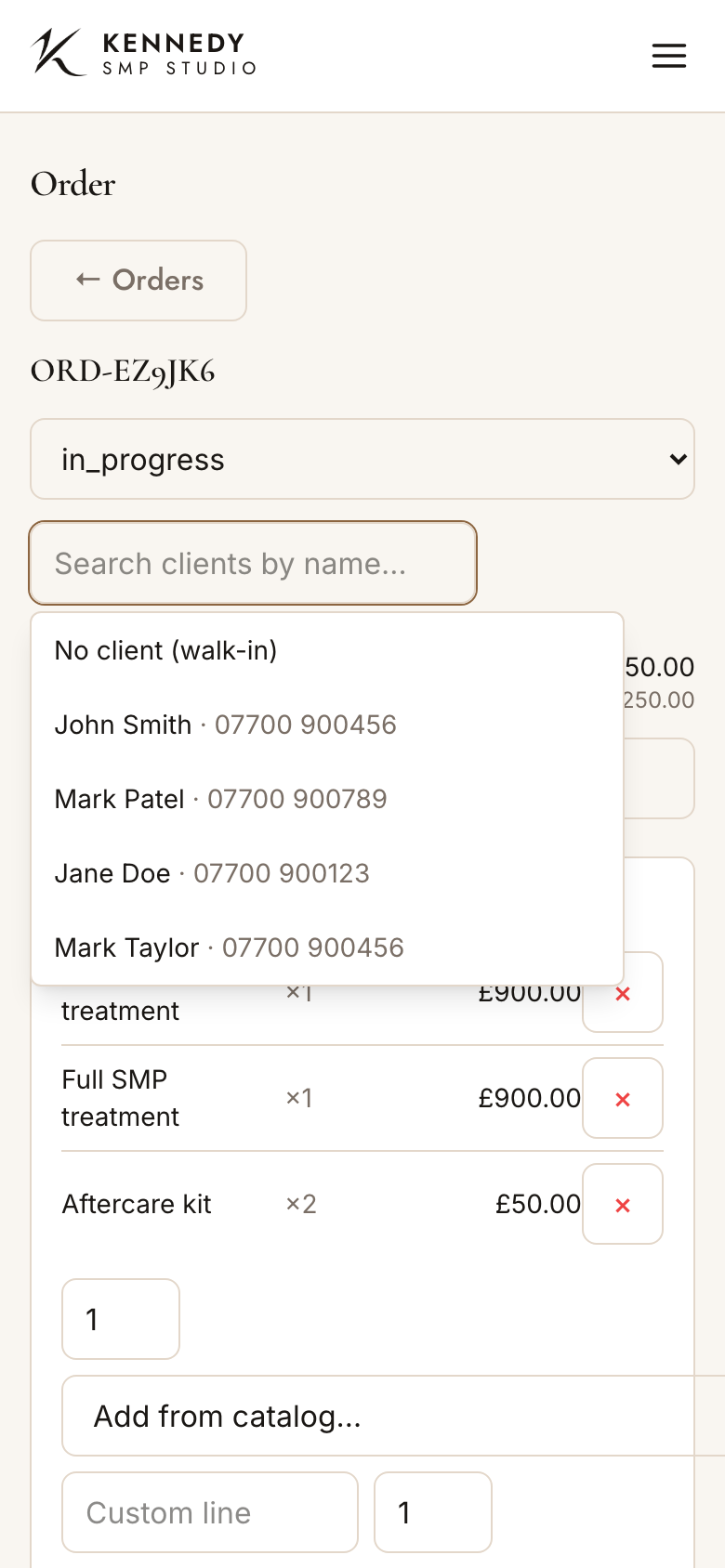
For a walk-in (no details yet): on the Orders list tap New order. It starts with “No client (walk-in).” You can attach a client later: tap the client picker, search their name, and choose them (or No client (walk-in)).
A brand-new order you back out of without adding anything is tidied away automatically, so you won’t pile up empty orders.
Add what they’re paying for
On the order, the Line items section is where you build the quote. The Total adds up automatically.
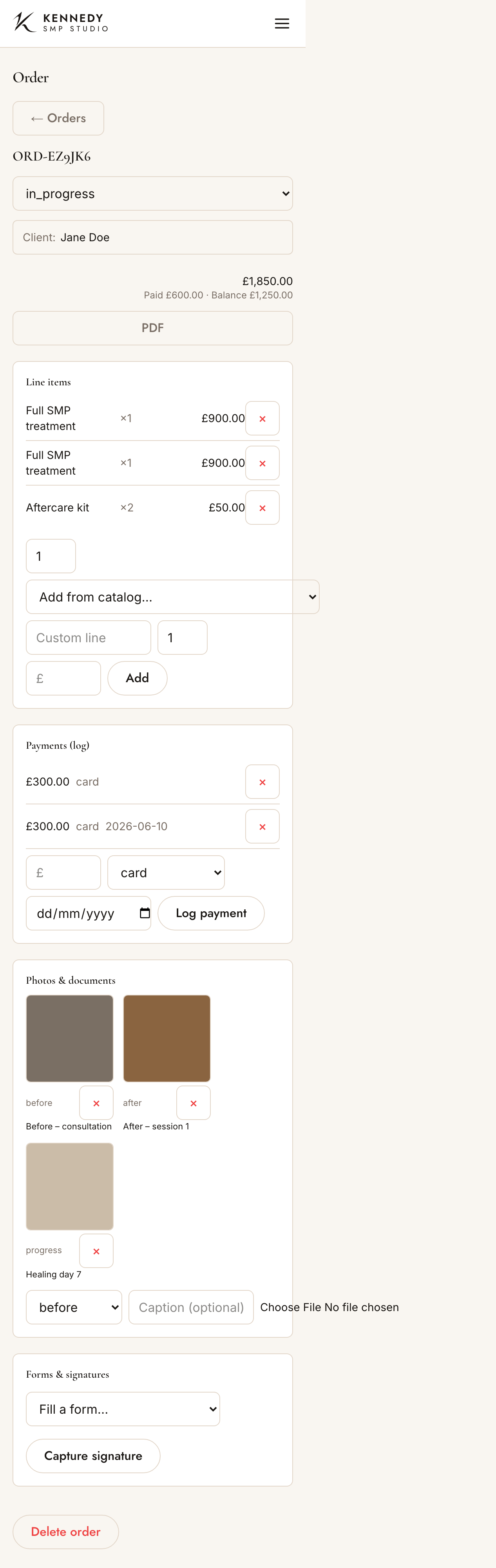
From your price list: set the quantity in the small box, then choose a service from “Add from catalog…”. (Your price list is managed under Catalog.)
A one-off line: fill in Custom line (description), a quantity, and the £ price, then tap Add. If you type a price it doesn’t understand, it’ll tell you rather than guess.
Remove a line: tap the × on its row (it asks first).
Take payment
Payments are logged here (the admin records what you’ve taken — it doesn’t charge cards).
In Payments (log):
- Enter the £ amount.
- Choose the method — card / cash / bank transfer / other.
- Apply it to a specific sitting (or leave it order-level) — handy because payment is due before each sitting, so you can see exactly which visit’s been paid for.
- Optionally set the date.
- Tap Log payment.
The order header then shows Paid and the Balance — or Settled when it’s all paid, or Overpaid if they’ve paid too much. A small reconciliation line shows the sittings total vs the order total, so you can spot if the per-sitting amounts don’t add up to the job. To remove a payment you logged by mistake, tap its × (it asks first).
Your studio’s bank details now appear on the invoice / quote PDF, so a client can pay by transfer ahead of their visit.
Add before & after photos
In Photos & documents:
- Choose the type — before, after, progress, or document.
- Add an optional caption (e.g. “Before – consultation”).
- Choose the photo or file (photos or PDFs, up to 15MB).
Thumbnails appear on the order. Photos are stored privately — they’re only visible to you when signed in (or to the client in their own portal), never public. Tap a photo’s × to delete it (it asks first).
Running the job over several visits? Add a sitting per session and file that session’s photos, notes and consent there, instead of all on the order.
Move the job through its stages
Use the status dropdown at the top of the order: draft → quoted → accepted → in progress → completed → paid. Marking an order completed or paid asks you to confirm. (The invoice automatically says QUOTE before it’s accepted and INVOICE afterwards.)
The invoice / quote (PDF)
Tap PDF at the top of the order. It opens a tidy, on-brand document in a new tab — your K-mark and studio details, the client, the line items, the totals (and VAT if you’re registered), what’s Paid and the Balance — ready to print or email. It’s headed QUOTE until the order is accepted, then INVOICE.
Remove & restore an order
- Remove: open the order → Delete order at the bottom → confirm. It’s hidden from your lists (not destroyed).
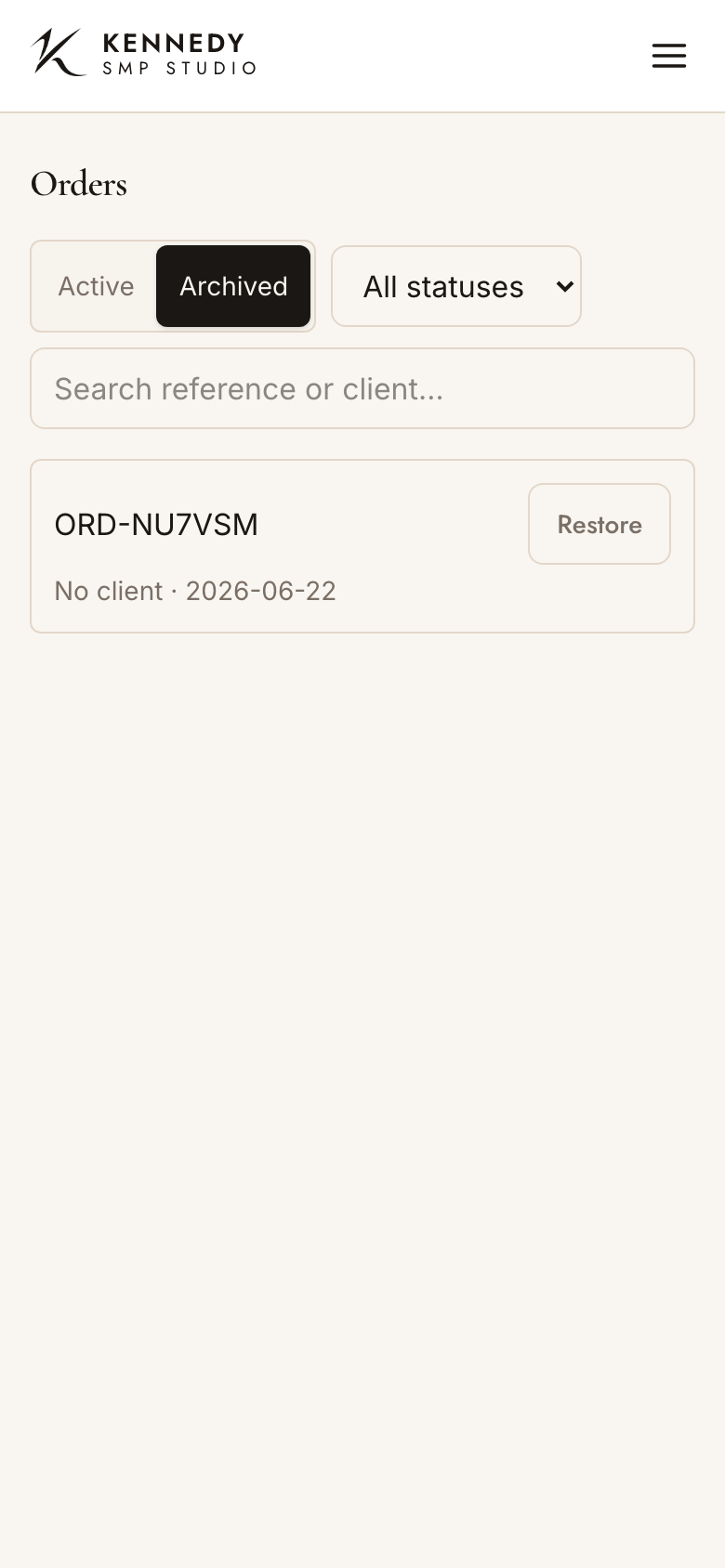
- Restore: on the Orders list, switch Active / Archived to Archived, find it, and tap Restore.
Run it over several sessions — Sittings
Most SMP jobs take several visits. On the order, Sittings lets you keep each session separate — its own date, specialist, notes, photos, and the consent + treatment record for that visit. Tap + Add sitting to start one. Full details in the Sittings guide.
Share it with the client — the portal
Tap Send / re-send portal link in the order’s Activity panel to email the client a secure link to their order. They can read the quote, see their photos, accept the quote, and complete their consent before they arrive. The Activity panel then shows whether they’ve opened it and what they’ve done. See The client portal.