
Tap Forms in the menu. There are two tabs: Templates (your reusable forms — consent, consultation, treatment record) and Agreements (T&C) (the exact terms a client signs).
Your forms are already set up
Three real forms come ready to use, rebuilt from the studio’s own paper documents — you don’t have to create them:
| Form | Who fills it | When | Signed? |
|---|---|---|---|
| Consent & Medical History | the client | each sitting | yes |
| Treatment Plan — Consultation | client + you | once per order | — |
| Treatment Record | you (technician) | each sitting | yes |
You can use them as they are, tweak the wording, or build your own. The rest of this guide explains the builder so you can.
Build or edit a form template
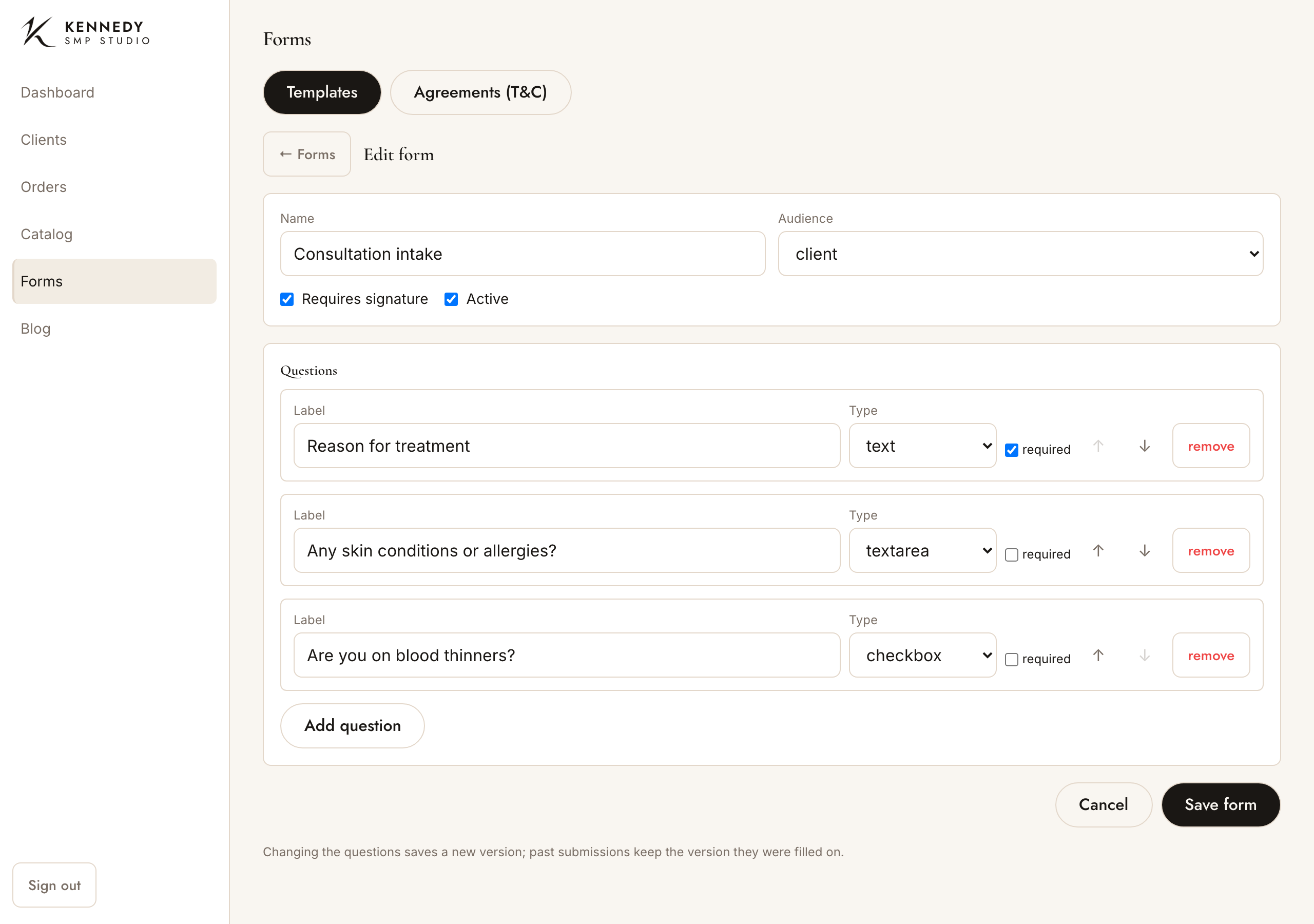
- Forms → Templates → New form (or tap an existing form to edit it).
- Set the Name, then two key settings:
- Form access — staff or client. A client form is one a client may fill in themselves (in the studio kiosk or their portal); a staff form is for your eyes only.
- Scope — Order or Sitting. Order forms are filled once per job (like the consultation). Sitting forms are filled once per session (like consent and the treatment record) and appear on each sitting.
- Tick Requires signature (the form must be signed to finish) and Active as needed.
- Add your Questions (below), then tap Save form.
Question types
For each question set a Label, pick a Type, and tick required if it must be answered:
- text / textarea — a short answer or a longer note.
- number, date — a figure or a date.
- yesno — a simple Yes / No.
- select, radio — pick one from a list; multiselect / checkbox — pick several. For these, type the options one per line.
- section — a heading that breaks the form into parts.
- info — a read-only note or explanation (no answer) — put the wording in Body.
- scale — a 1-to-N rating (e.g. a pain scale). Set Min, Max, and the end labels (e.g. no pain → very painful).
- table — a small grid (e.g. a custom list with a Lot / Expiry column). Set the Columns (one
key:Labelper line) and the number of Rows. (The inks and needles you use are now recorded structurally per sitting — make, size, lot and expiry — rather than as a free-text form table.) - imagechoice — pick from a set of pictures (the Norwood hair-loss scale, or the hairline-finish shapes). Choose the Image set, and tick multi-select to allow more than one.
Who answers each question
Every question has its own Audience — client, technician, or both. On the form, fields are greyed for whoever isn’t meant to fill them: a client only fills client (and both) fields; you complete the technician fields when you review. Tick staff note on a question to add a little technician-only note box beside the client’s answer (handy on the consent terms).
Use ↑ / ↓ to reorder a question and remove to delete it.
About versions: when you change a form’s questions and save, it stores a new version. Forms already filled in keep the version they were filled on, so old records never change underneath you.
Where each form turns up on an order
- Consultation (order scope) shows once on the order, under Consultation — tap Fill …, and later Review / View or PDF.
- Consent & Medical History and Treatment Record (sitting scope) show on each sitting under Forms — Fill …, then View answers / Review / PDF.
Filling and reviewing a form
Hand the iPad to the client and they fill their part, then sign — see The signing screen. A client who fills a consent (in studio or from their portal) leaves it marked client-submitted; you then tap Review, add your technician notes, and co-sign to finalise it.
When it’s done, tap PDF to produce the branded Consent or Treatment Plan document, ready to print or email.
Edit your terms & conditions (Agreements)
This is the wording a client agrees to when they sign — on the signing screen or in their portal.
- Forms → Agreements (T&C).
- Pick an existing agreement from the list, or set a Slug (a short name) for a new one.
- Edit the Title and the Body (the exact text the client agrees to).
- Tap Save agreement and confirm — “Clients will sign this exact text from now on.”
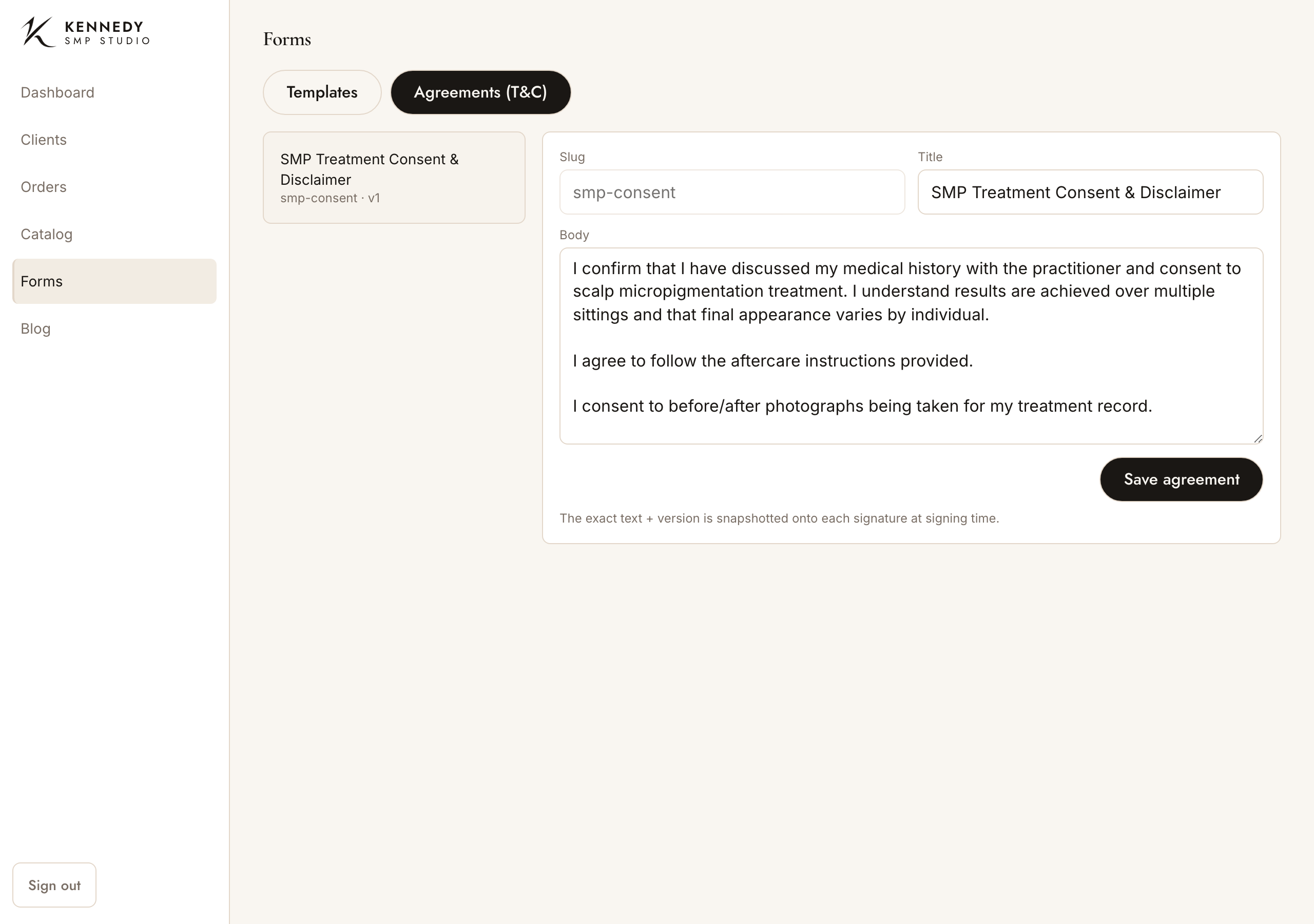
Important — your legal record is protected: the exact wording and version is snapshotted onto each signature at the moment the client signs. So if you reword your terms next month, every past signature still shows the terms that client actually agreed to. (The slug stays fixed once an agreement exists, so links to it never break.)